
Table of Contents
Uploaded Files #
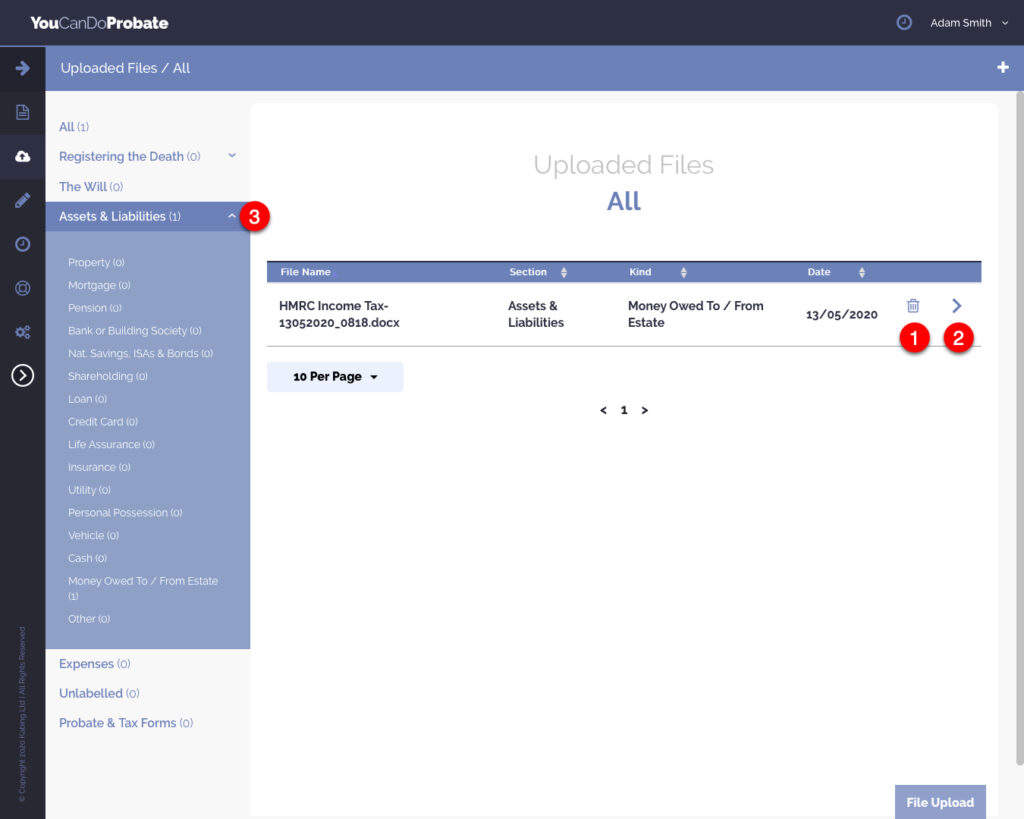
Utilise the file upload facility to keep a backup of all paperwork, emails and scanned images. You can quickly access any documents or information you need, from one place, without searching through piles of paperwork or trawling through emails.
- Click ‘Letters & Documents’ from the Fly-Out Menu.
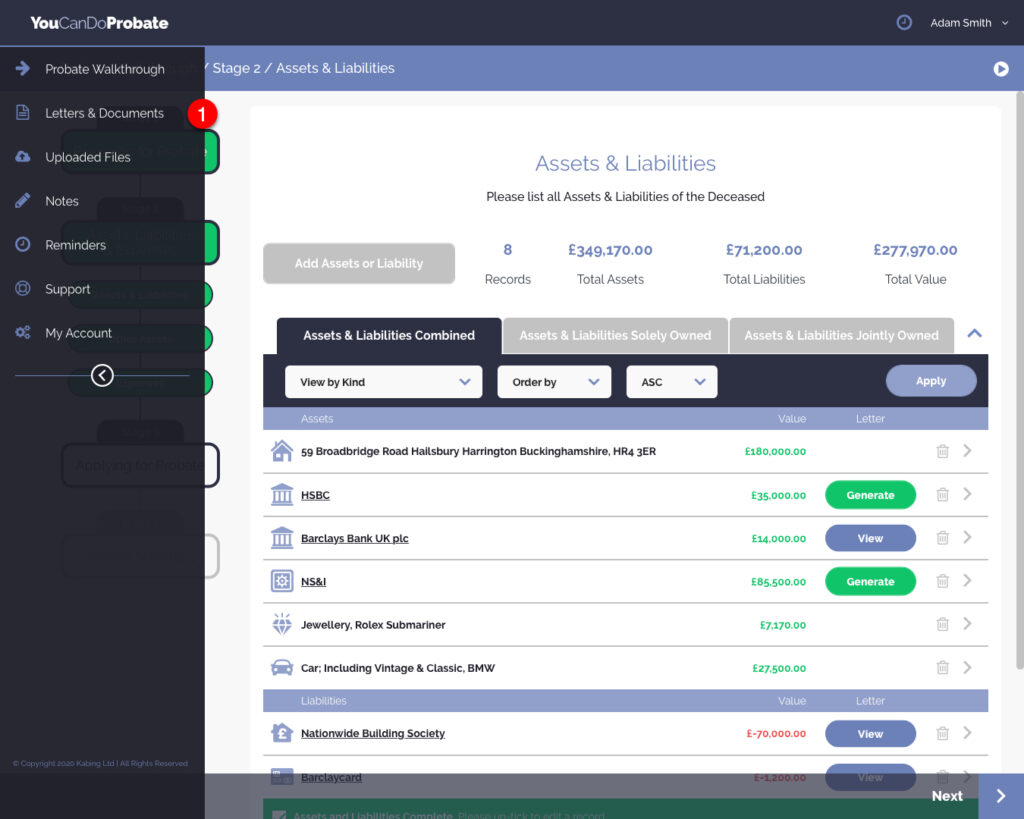
- To add a file, click on the ‘+’ icon.
- or, click on the ‘File Upload’ button.
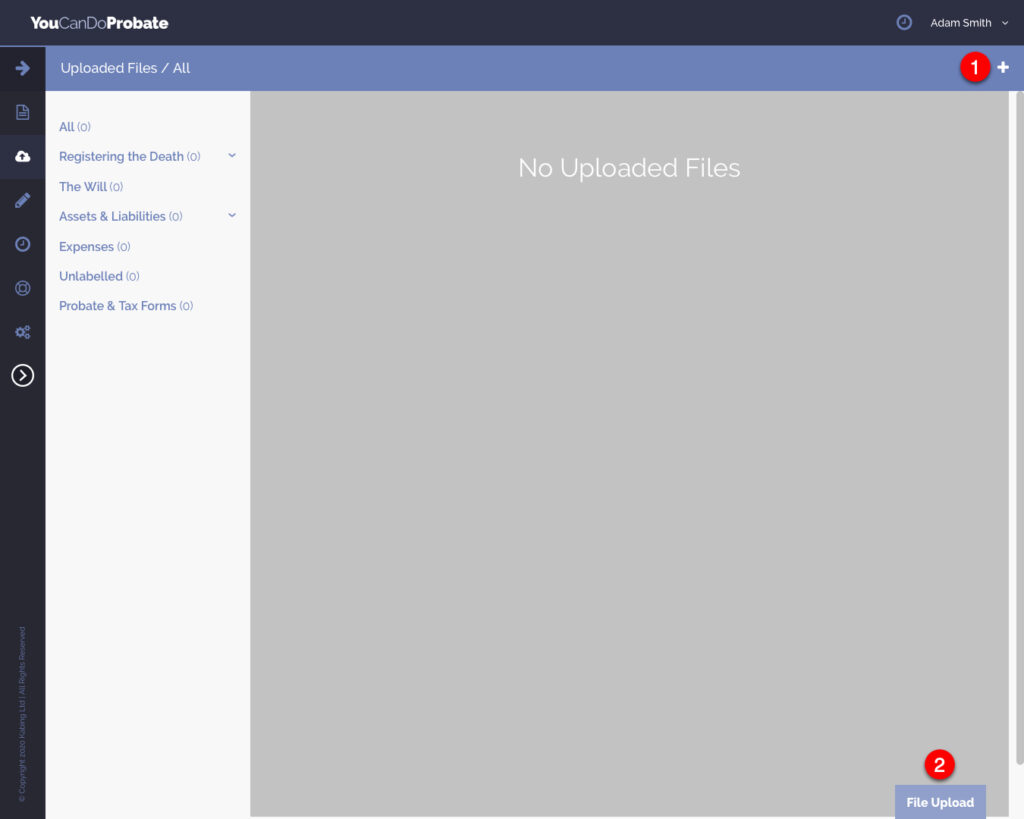
- Drag & Drop your file, or click the ‘Choose File’ button to select your file.
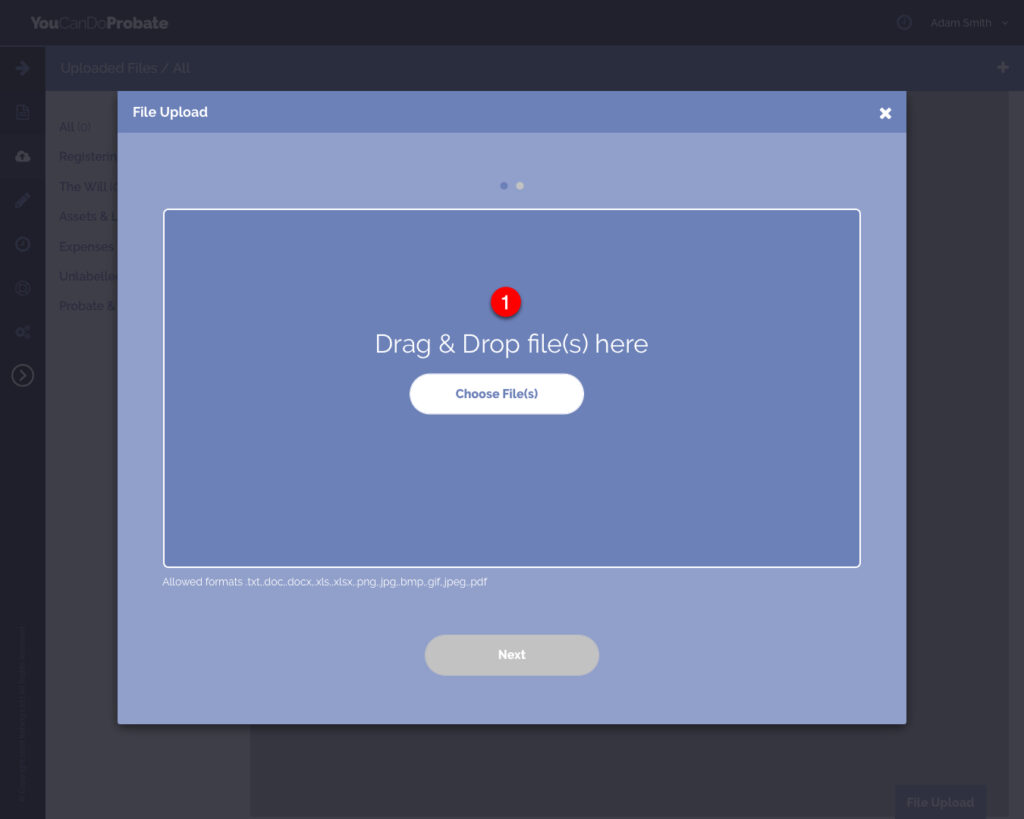
- Assign your file to a Section; This will allow you to easily find the file.
- If applicable, the file can also be assigned to a specific kind from the section.
- Click the ‘Save’ button.
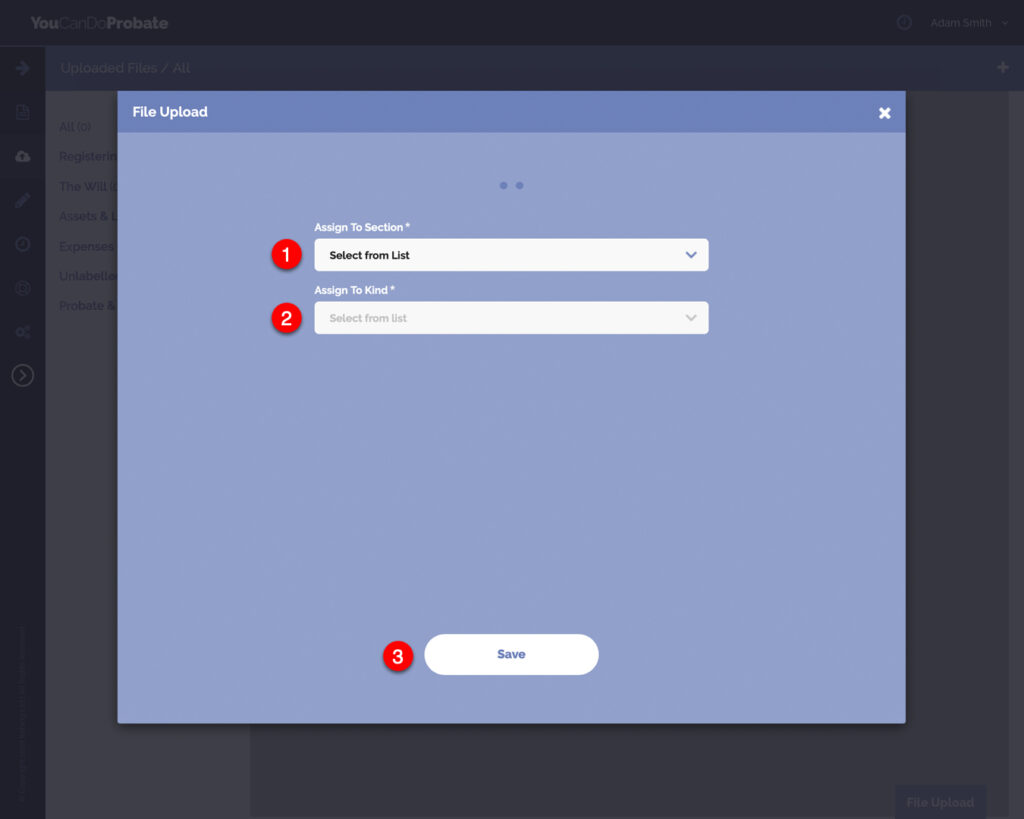
- Use the ‘Trash Can’ icon to delete the uploaded file. If you delete anything the data cannot be restored.
- Click the ‘Arrow’ icon to view, edit or download the uploaded file.
- View uploaded files by sections from the sidebar.
Notes #
Utilise the notes facility at your convenience, to keep a record of any additional information about something you are listing in the application, but is not applicable to the necessary information required to complete the Probate and Tax forms.
- Click ‘Notes’ from the Fly-Out Menu.

- To add a note, click on the ‘+’ icon.
- or, click on the ‘Add Note’ button.

- Type the detail of your note into the text field.
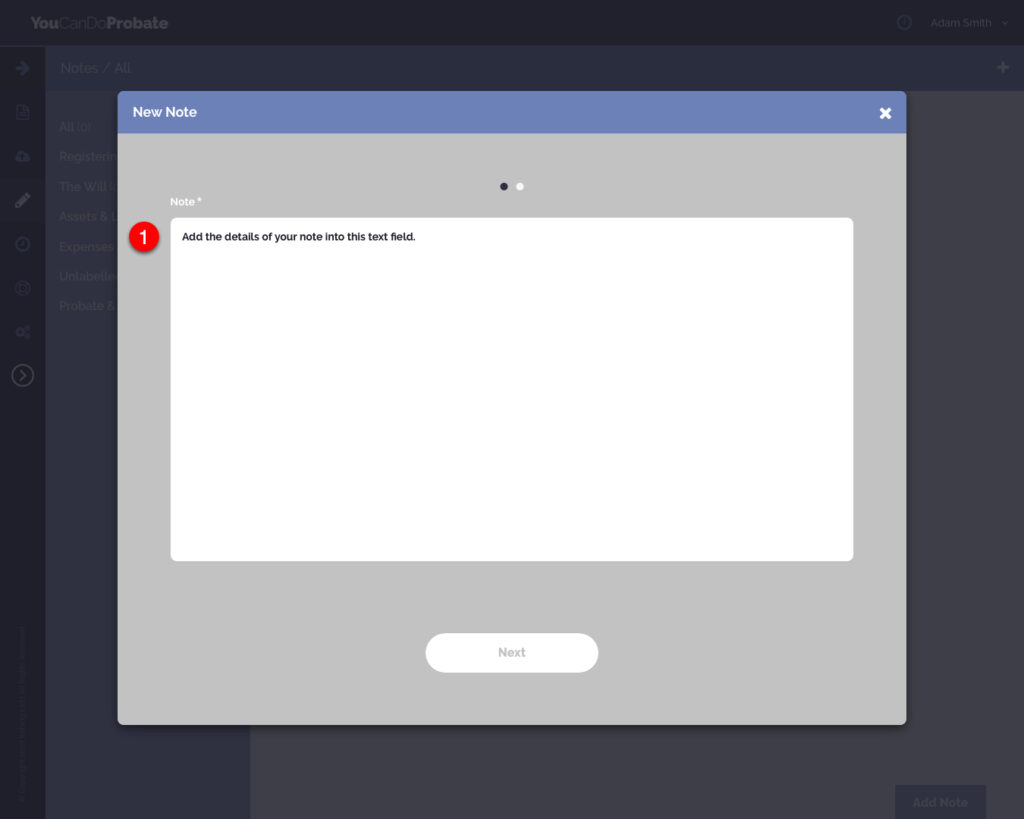
- Give the Note a title
- Assign your file to a Section; This will allow you to easily find the note.
- If applicable, the file can also be assigned to a specific kind from the section.
- Click the ‘Save’ button.

- Click the ‘Arrow’ icon to edit the Note.
- Use the ‘Trash Can’ icon to delete the Note. If you delete anything the data cannot be restored.
- Click on the Note titles to view the details of each one.
- View Notes by sections from the sidebar.

Reminders #
With so much going on for you at the moment, the Reminders facility ensures you don’t forget to do anything. You can use this to remind you to find some information you do not have, or even chase a company to get back in touch with you.
- Click ‘Reminders’ from the Fly-Out Menu.

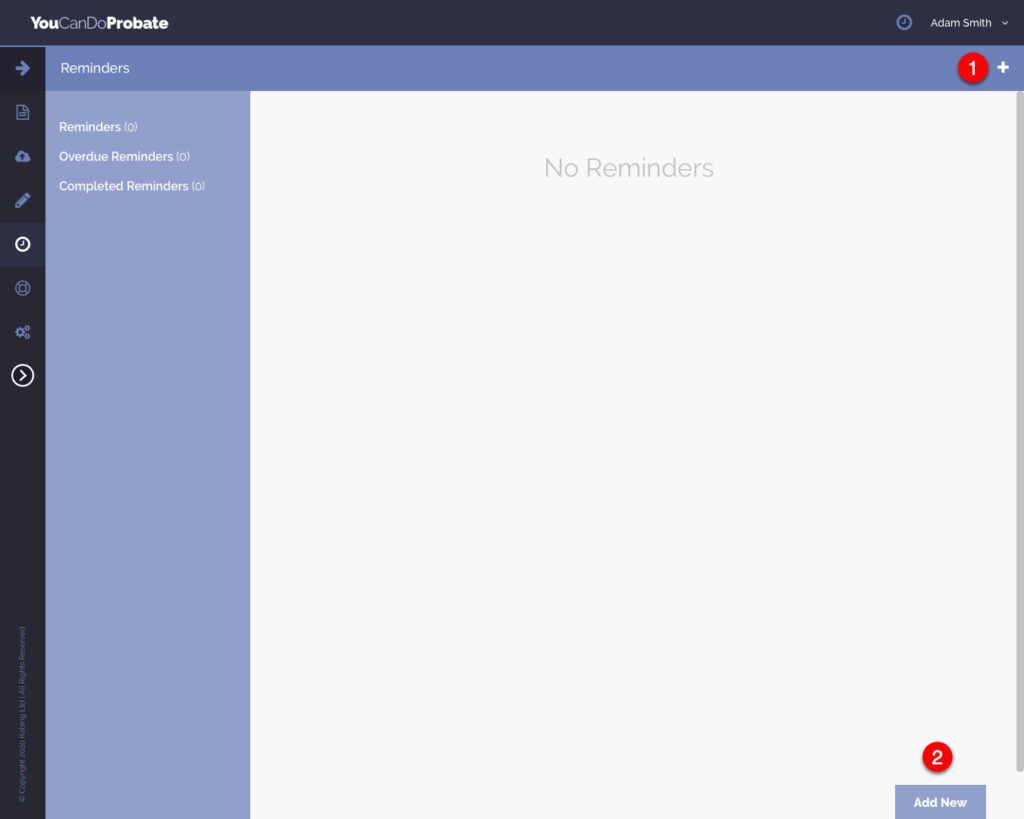
- You can add a Reminder from the ‘Clock’ icon, in the header, at any time and place within the application.
- To add a Reminder, click on the ‘+’ icon.
- or, click on the ‘Add New’ button.
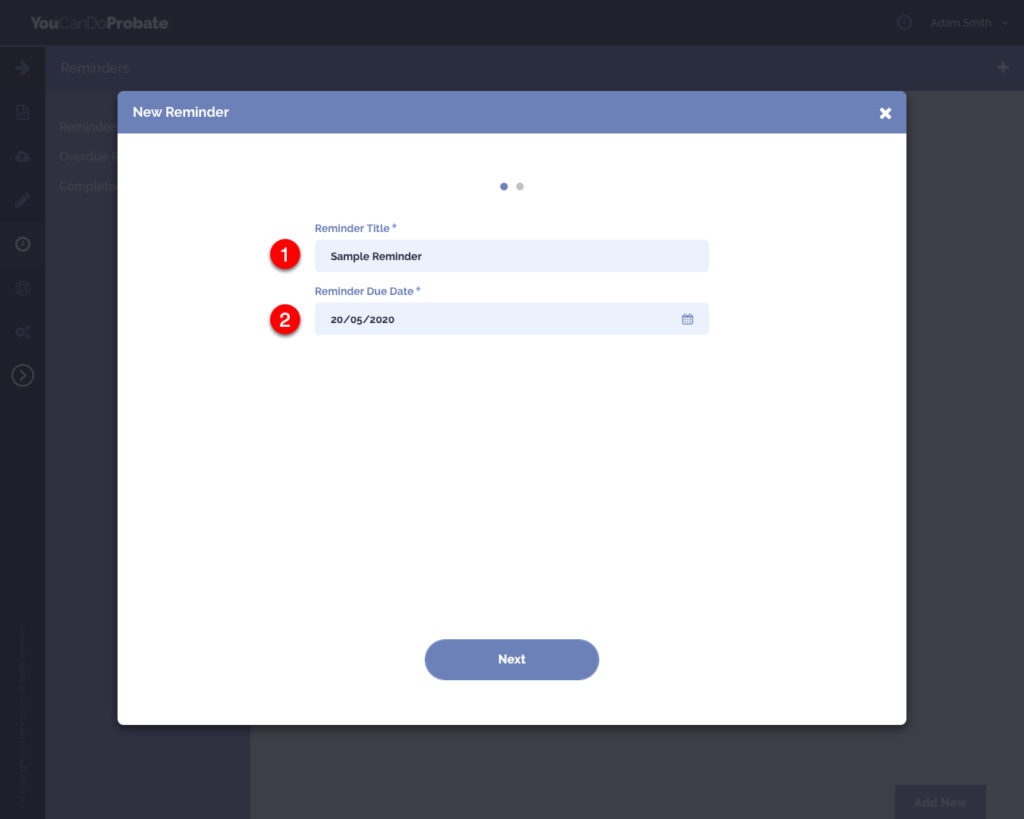
- Give the Reminder a title
- Assign a due date for the Reminder; You will be notified a Reminder is due when a red square appears over the Reminders Icon in the ‘Fly-Out Menu.
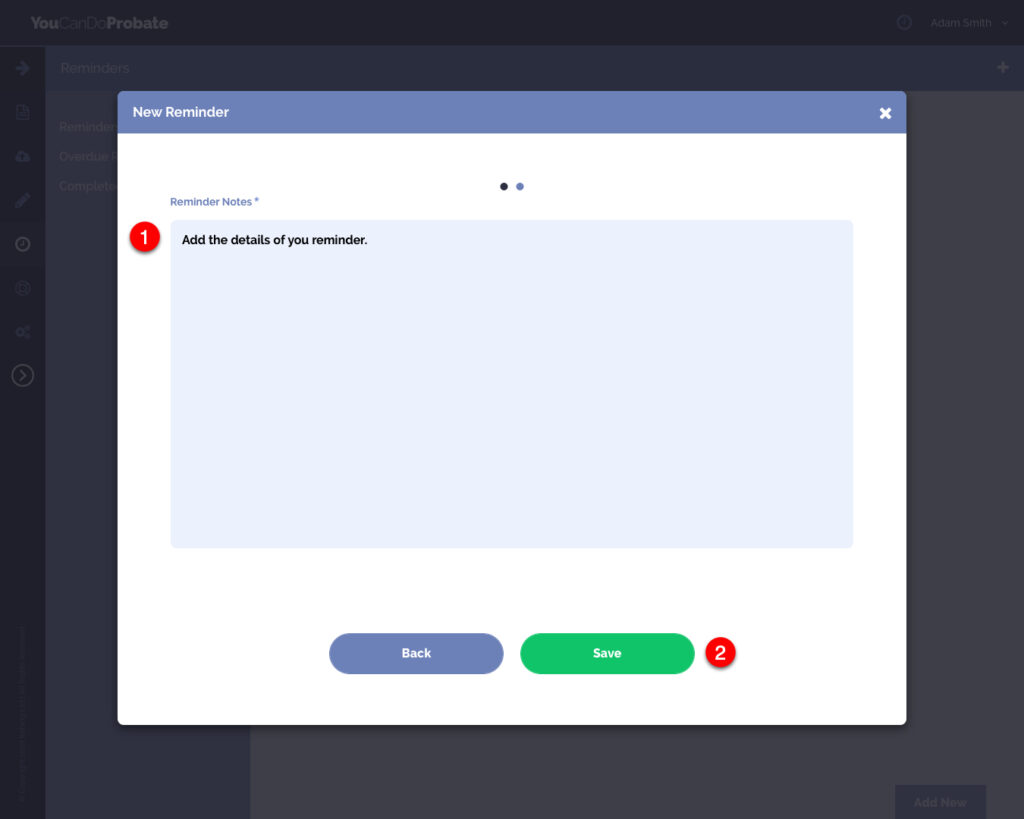
- Type the detail of your Reminder into the text field.
- Click the ‘Save’ button.
- Click the ‘Arrow’ icon to edit the Reminder.
- Use the ‘Trash Can’ icon to delete the Reminder. If you delete anything the data cannot be restored.
- Click on the Reminder titles to view the details of each one.
- View only Overdue Reminders and Completed Reminders from the sidebar.
